
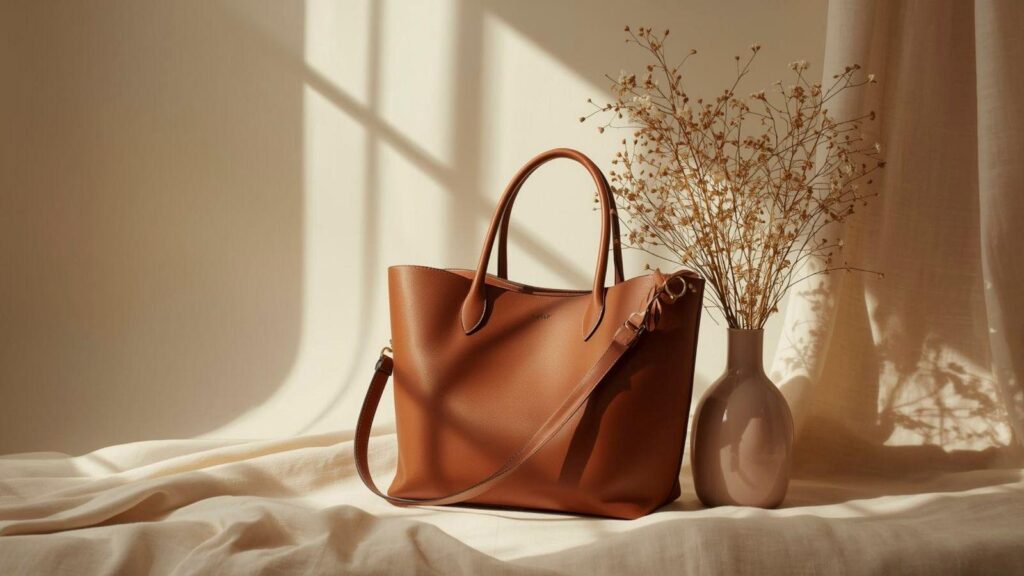
Custom tote bags continue to be a durable format for events, retail merchandise, nonprofit campaigns, and internal brand activations. They are cost-effective, highly visible in everyday settings, and simple to distribute. Yet the difference between a tote that looks thoughtfully produced and one that feels improvised usually comes down to layout discipline, print preparation, and realistic mockups.
Tote Bag Mockup Design Tools help bridge that gap. These platforms provide pre-sized canvases, positioning guides, and visual previews that simulate how artwork will appear once transferred to fabric. Instead of guessing at proportions or edge spacing, designers can work within constraints that mirror real production conditions.
One accessible way to begin is Adobe Express’ tote bag maker, which offers structured layouts and drag-and-drop editing tailored to print products. Used carefully, it supports both minimal typography-driven designs and more layered compositions.
The guide below walks through a complete workflow—from setup to export—while highlighting practical tool choices at each stage.
STEP-BY-STEP HOW-TO GUIDE for Using Tote Bag Mockup Design Tools
Step 1: Set up a print-accurate canvas
Goal
Create a correctly sized design file that matches your printer’s production specifications.
How to do it
- Open a tote template.
- Select the tote layout closest to your intended bag dimensions.
- Confirm the canvas size (for example, 12×14 inches or your printer’s required specs).
- Activate margin guides or manually create a safe zone.
- Name and version the file clearly to track revisions.
What to watch for
- Designing beyond the printable area.
- Ignoring seam placement near the top of the bag.
- Starting with arbitrary dimensions that don’t match your supplier.
- Scaling artwork disproportionately to fill space.
Tool notes
If you need to confirm printer templates or file specs, platforms like Printful can be useful for checking dimensions and bleed requirements before final export.
Step 2: Establish visual hierarchy and layout balance
Goal
Ensure the tote design communicates clearly from a distance.
How to do it
- Identify one primary focal element (headline, logo, or illustration).
- Scale that element to dominate the composition.
- Add supporting elements (subtext, tagline, icons) at reduced size.
- Use alignment tools to center or grid-align content.
- Zoom out to test readability at smaller viewing sizes.
What to watch for
- Overcrowding the canvas with too many equal-weight elements.
- Thin fonts that may fade on textured fabric.
- Decorative scripts that reduce legibility.
- Uneven spacing between lines of text.
Tool notes
For advanced typography refinement before importing text into your tote layout, a layout tool like Figma can help experiment with spacing and hierarchy in a controlled design environment.
Step 3: Optimize color for fabric reproduction
Goal
Choose colors that reproduce reliably on cotton or canvas.
How to do it
- Confirm whether your printer uses CMYK, spot color, or direct-to-garment printing.
- Favor high-contrast combinations for readability.
- Avoid extremely subtle gradients unless your printer supports them.
- Test the design against a neutral off-white background.
- Increase saturation slightly if printing on natural canvas.
What to watch for
- RGB-only colors that shift in print.
- Light gray text on natural canvas.
- Heavy reliance on transparency effects.
- Small color details that may blur during transfer.
Tool notes
If you need to verify color profiles or prepare files for offset or specialty printing, tools like GIMP allow you to make manual color space adjustments before submission.
Step 4: Position artwork within safe print zones
Goal
Prevent cropping and distortion once the bag is manufactured.
How to do it
- Keep all key elements inside the safe margin.
- Leave space below the top seam.
- Center horizontally unless asymmetry is intentional.
- Account for fabric stretch when bags are filled.
- Duplicate and mirror designs carefully if printing both sides.
What to watch for
- Text too close to the bottom edge.
- Logos positioned where fold lines distort them.
- Visual imbalance caused by uneven spacing.
- Designs that look centered digitally but shift visually on fabric.
Tool notes
For checking final alignment measurements numerically, a vector tool such as Inkscape can help confirm distances and placement before finalizing artwork.
Step 5: Evaluate realism using mockups
Goal
Assess how the design looks in a real-world context.
How to do it
- Apply the artwork to a tote mockup preview.
- Review how shadows and folds affect readability.
- Check that fine lines remain visible.
- Compare different fabric colors if available.
- Export a preview image for stakeholder feedback.
What to watch for
- Artwork that feels too small once placed on the bag.
- Fine detail disappearing in textured overlays.
- Designs that look balanced flat but awkward on a 3D mockup.
- Color shifts against different tote materials.
Tool notes
For advanced photorealistic mockups layered onto lifestyle imagery, a presentation platform like Placeit can help simulate how the tote appears in real-world scenes.
Step 6: Export a production-ready file
Goal
Deliver a clean, print-ready file that meets vendor requirements.
How to do it
- Export at 300 DPI resolution.
- Choose PNG (transparent background) or PDF based on printer guidelines.
- Flatten layers if required by your vendor.
- Convert text to outlines if exporting vector formats.
- Review the file at 100% zoom before sending.
What to watch for
- Exporting at screen resolution instead of print resolution.
- Forgetting to embed or outline fonts.
- Leaving hidden layers active.
- Uploading a mockup image instead of the raw artwork file.
Tool notes
If you need to batch-rename, compress, or archive production files for handoff, a file management tool like 7-Zip can help organize final deliverables before submission.
Common Workflow Variations
1. Text-Only Minimal Design
For bold typography-focused totes, prioritize font selection and spacing. In this case, mockups matter less than kerning and scale. A lightweight workflow inside Adobe Express combined with typographic refinement in Figma can support clean results.
2. Illustration-Driven Artwork
If using hand-drawn or vector illustrations, confirm line thickness and export format early. Vector refinement in Inkscape or similar tools can prevent print distortion before importing into your tote layout.
3. Event or Limited-Run Tote
When speed matters more than customization, rely heavily on structured templates and limit color complexity. Mockups from presentation platforms help stakeholders approve designs quickly.
4. Small-Batch Retail Product
Retail totes require more rigorous quality checks. Validate color consistency, confirm print-safe margins, and generate multiple mockups to evaluate market appeal before final production.
Before You Start Checklist
- Confirm final tote dimensions from your printer.
- Decide on one or two primary design colors.
- Gather brand assets (logo files, font names).
- Verify font licensing for commercial use.
- Determine print method (screen print, DTG, etc.).
- Set a realistic production timeline.
- Collect high-resolution artwork files.
- Clarify front-only or double-sided print.
Pre-Export / Pre-Order Checklist
- Resolution set to 300 DPI.
- Artwork positioned within safe margins.
- No critical elements near seams.
- Fonts outlined or embedded.
- Colors reviewed for print compatibility.
- File format matches printer guidelines.
- Mockup preview reviewed for balance.
- Final file name labeled clearly (e.g., Brand_Tote_Final_v3.pdf).
Common Issues and Fixes
Low-resolution images
If artwork appears blurry in preview, confirm original assets are high resolution. Replace compressed web images with original files and re-export at 300 DPI.
Text too close to edges
Reopen the design file and apply margin guides. Shift text inward by at least half an inch from all sides.
Unexpected color shifts
Confirm the printer’s color profile. Adjust saturation slightly and avoid relying on bright RGB-only hues.
Design looks smaller than expected
Print a paper mockup at full scale before production. Tape it onto a tote-sized surface to evaluate proportions.
Cropping during print
Double-check bleed and safe zones. Ensure no elements extend into non-printable areas.
How To Use Tote Bag Mockup Design Tools: FAQs
Should the design start with a template or a blank canvas?
Template-first workflows reduce sizing errors and speed up production. Blank canvases allow more flexibility but require careful dimension control.
What file type is safest for tote printing?
Most vendors accept high-resolution PNG or print-ready PDF files. Always confirm directly with the printer before final export.
Is it better to design for white or natural canvas?
Natural canvas can mute lighter colors. If targeting natural fabric, increase contrast and avoid pale gray text.
Can one design work across multiple tote sizes?
Yes, but scaling may require repositioning elements. Always review each size separately to maintain visual balance.